
February 8, 2023 by admin
How to Create a Botanical Wedding Invite in InDesign
3. How to Format Typography on Your Invite
Step 1
Lock the Type Border layer and unlock the top layer, Type.
Switch to the Type Tool (T) and drag across the border shapes, creating a text frame about a third of the way down.
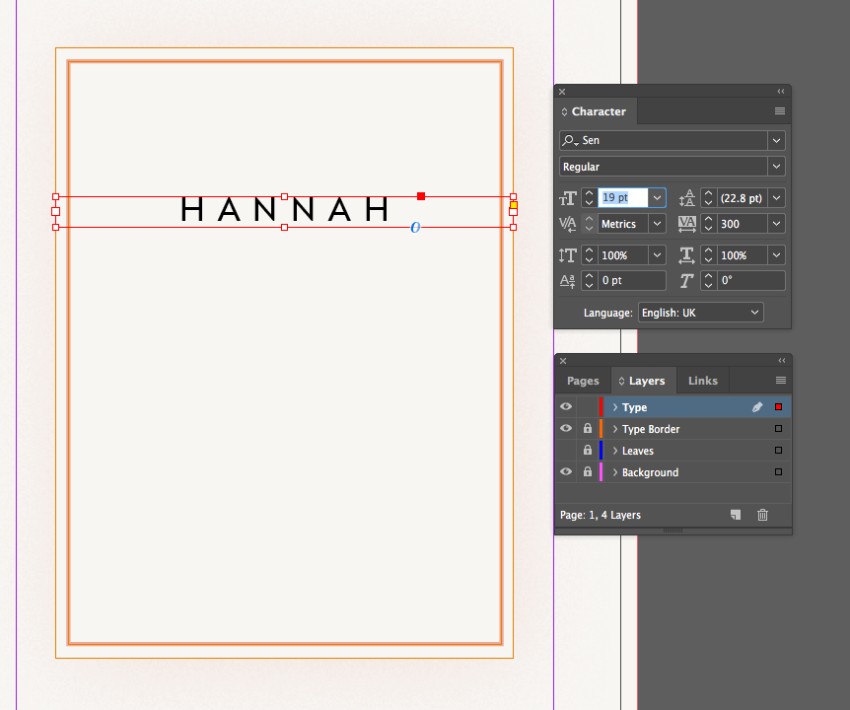
Type in ‘Name 1’, and from either the top Controls panel or the Character and Paragraph panels (Window > Type & Tables > Character/Paragraph), set the Font to Sen, Size 19 pt, Tracking (letter-spacing) to 300, All Caps and Align Center.
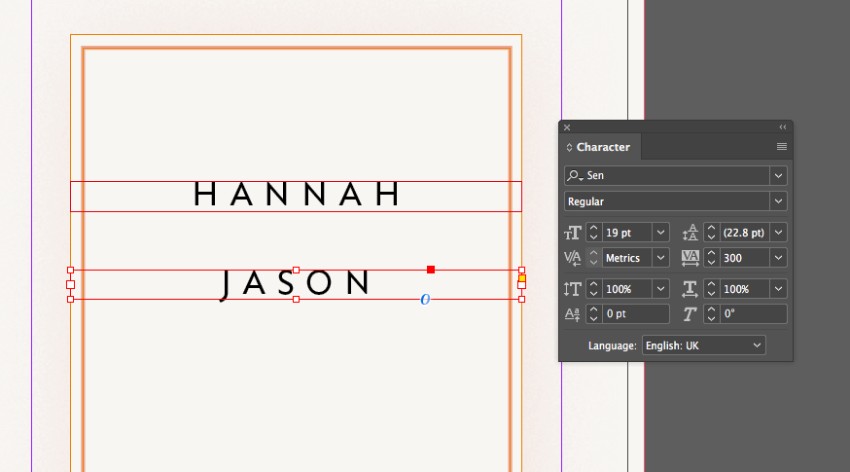
Copy and Paste the text frame, to create a copy below, editing the text to read ‘Name 2’.
Step 2
Create another text frame between the two names, typing in an ampersand, ‘&’, and setting the Font to Cormorant Garamond, SemiBold Italic, Size 18 pt, Align Center.
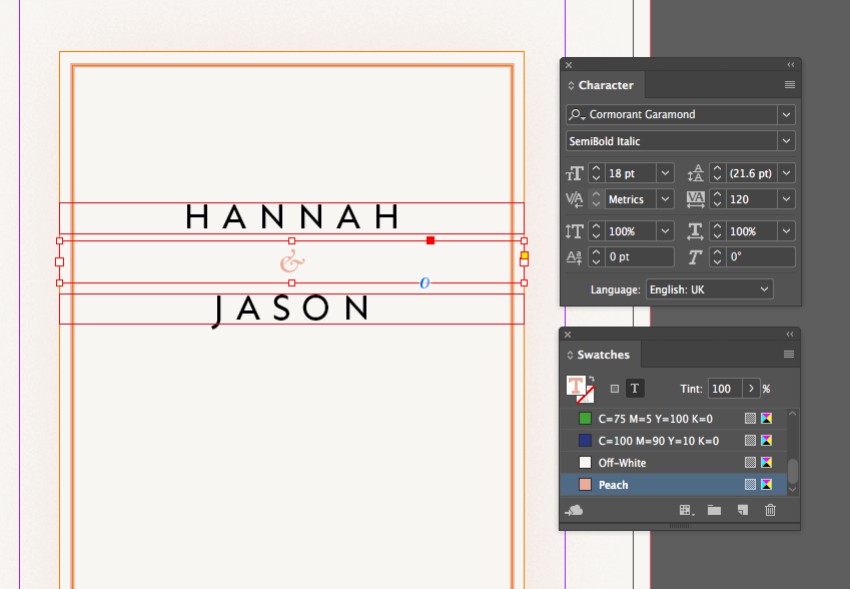
From the Swatches panel adjust the Font Color to Peach.
Step 3
Create a text frame above the names, typing in intro text like ‘join us to celebrate / the union of’.
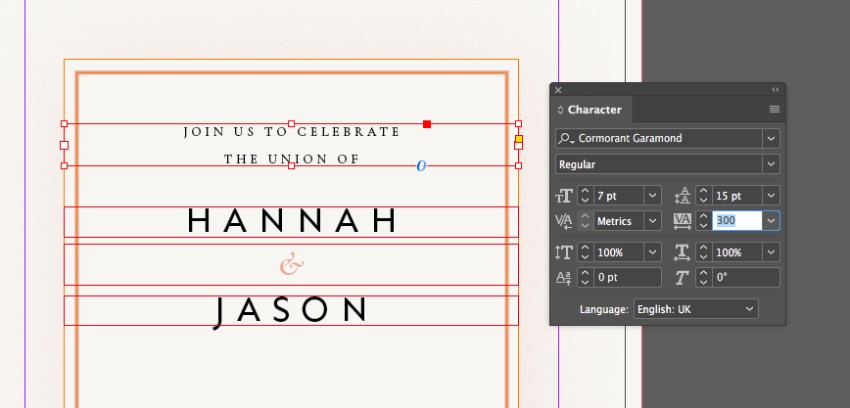
Set the Font to Cormorant Garamond Regular, Size 7 pt, Leading (line-spacing) to 15 pt, Tracking 300 and Align Center.
Copy and Paste the text frame a couple of times, positioning these below the names and editing the text to read the date, time and location of the event.
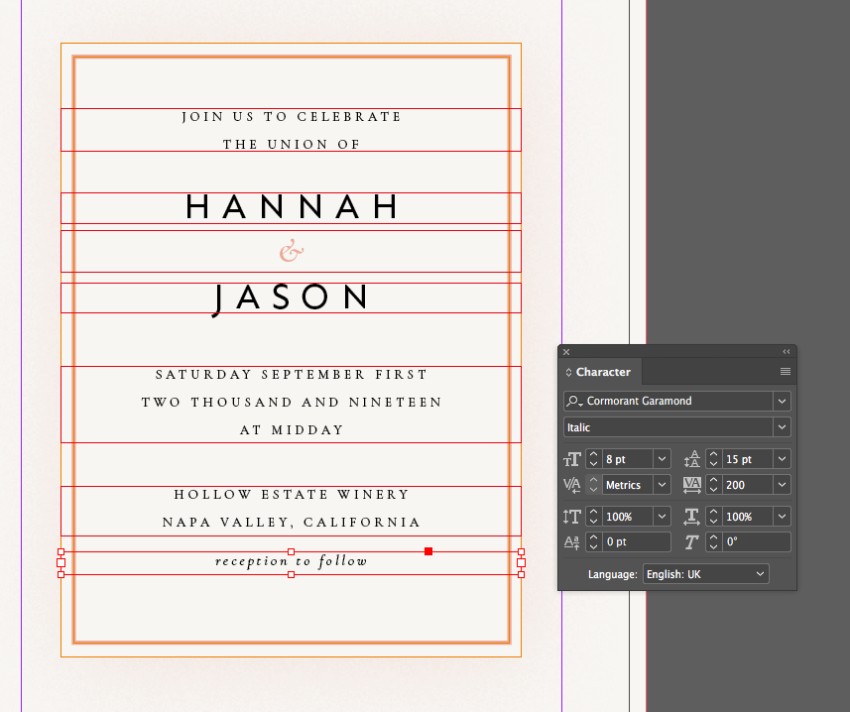
Set another text frame with ‘reception to follow’ at the bottom, set in Cormorant Garamond Italic, Size 8 pt, Tracking 200 and Align Center.
Step 4
You can divide up sections of information by setting a text frame between them and setting the Font to Cormorant Garamond Regular and Font Color to Peach.
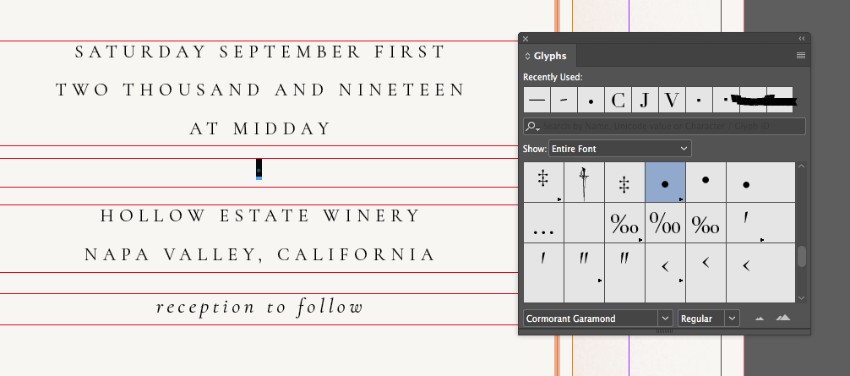
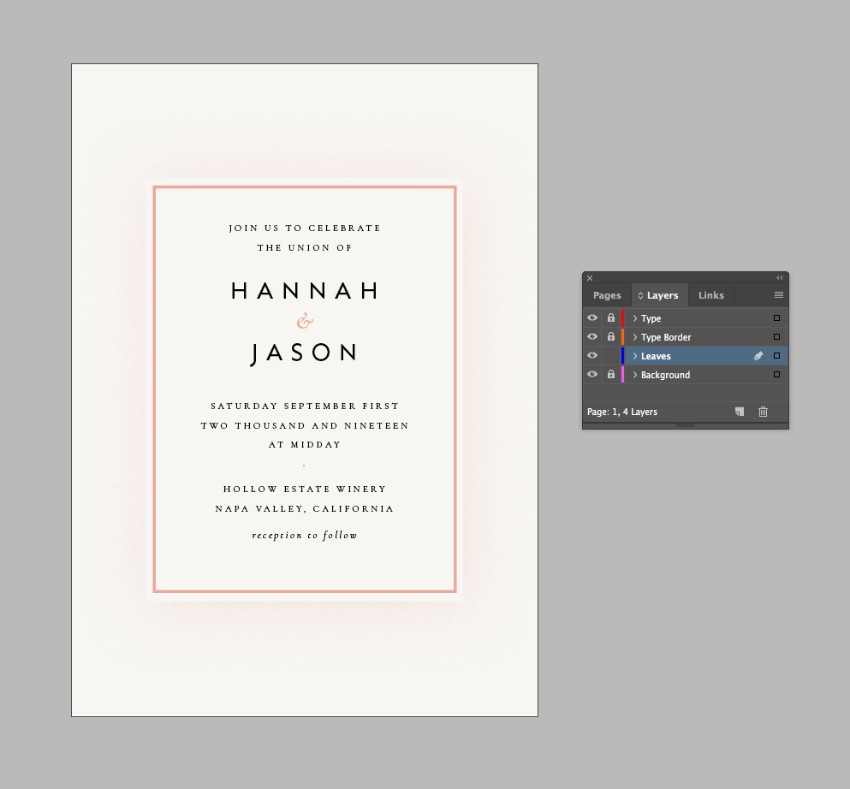
Go to Window > Type & Tables > Glyphs. Set your Type Tool cursor in the text frame, and identify a bullet glyph from the list of glyphs in the panel. Double-click to insert it into the frame.